
 Back to FAQs
How to create assessments in Gappeo.ai
To create an assessment in Gappeo.ai, you need to use the My Assessments tab and click on the Create Assessment button.
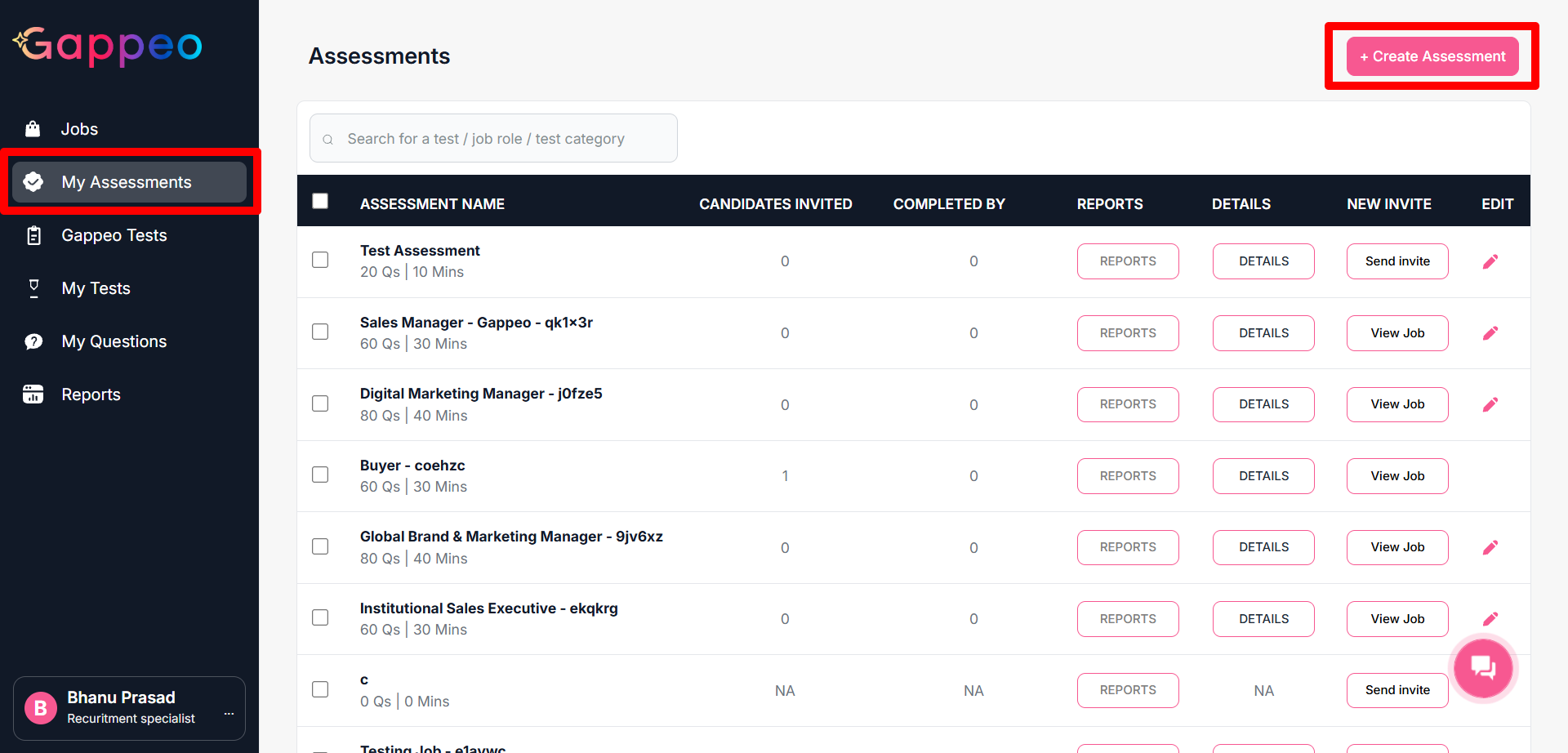
- You will get a window as below:
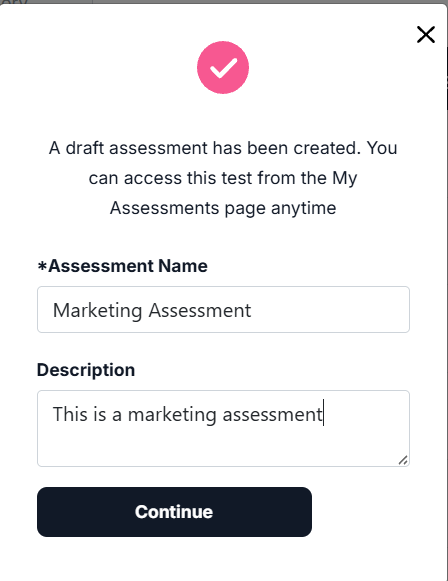
- Enter the Assessment Name and Description.
How can I update the assessment tests that got created during the Job Creation process?
- Go to the My Assessments tab to view all the assessments that got created.
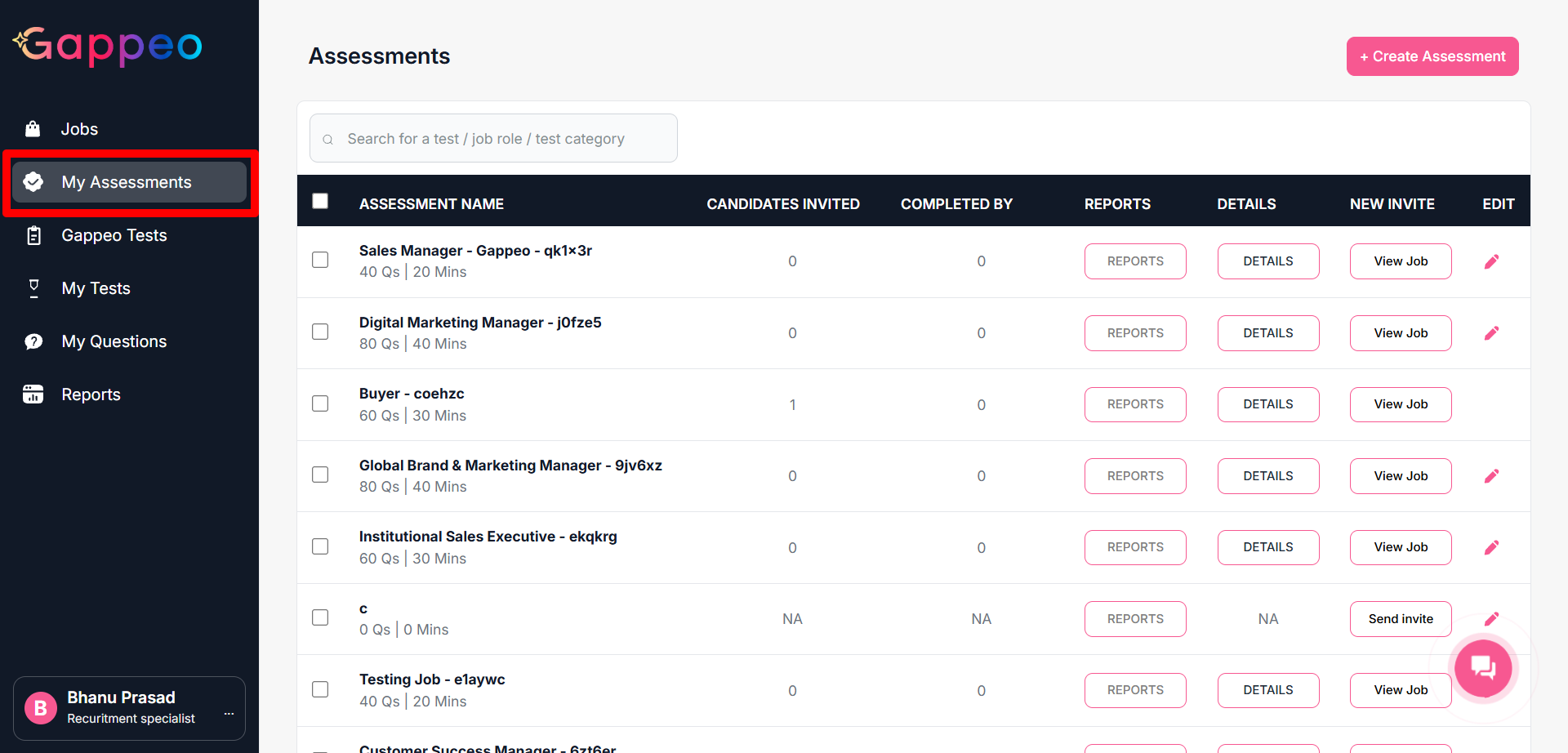
- In the assessments, you will see an assessment with the Job title then “-” and some code, these are the assessments that are created automatically with the job.
- At the end of all the assessments, you will see an edit icon. Once you click on this edit icon you can change the tests inside the assessment.
- For example here we have clicked on Sales Manager - Gappeo assessment.
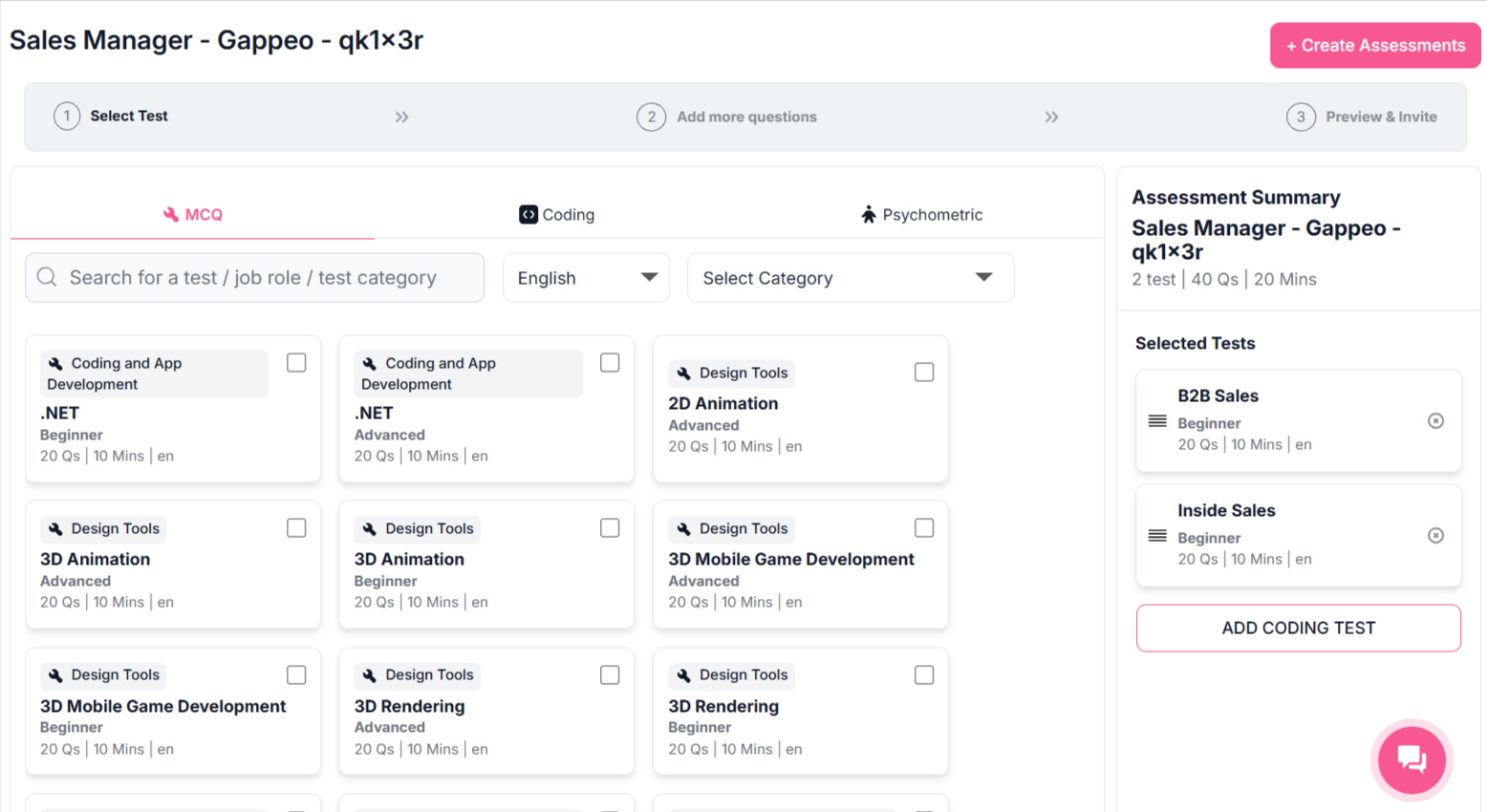
- You can search for any test that you want to add in the assessment using the search box. Click on the check box near any test that you select, it will get added to that selected assessment.
- In the above example, we searched for the Field Sales test, added that test in the already created assessment by clicking on the check box near it.
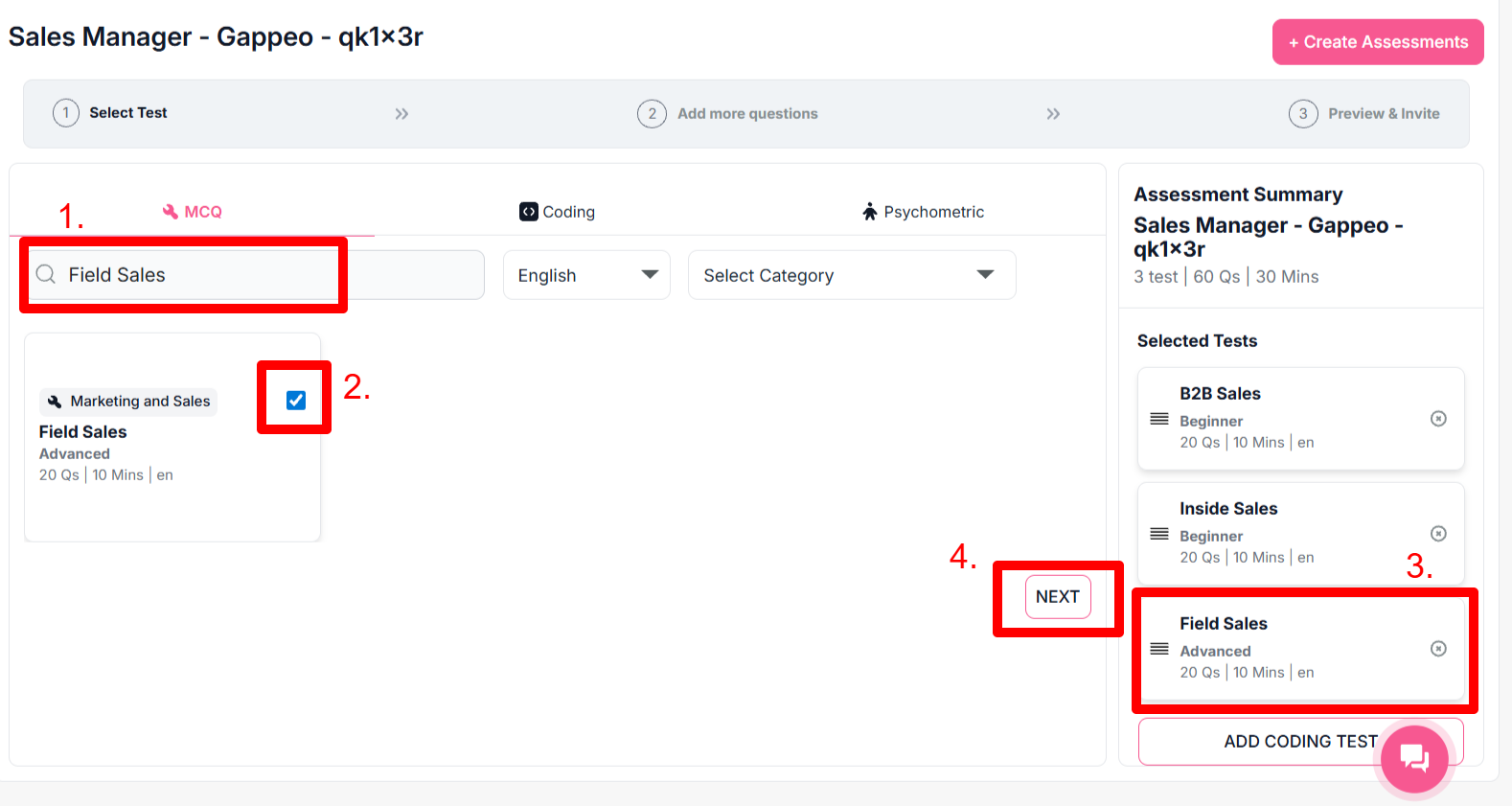
- Once it is done click on the next button.
- In the next screen, you will get an option to add additional questions.
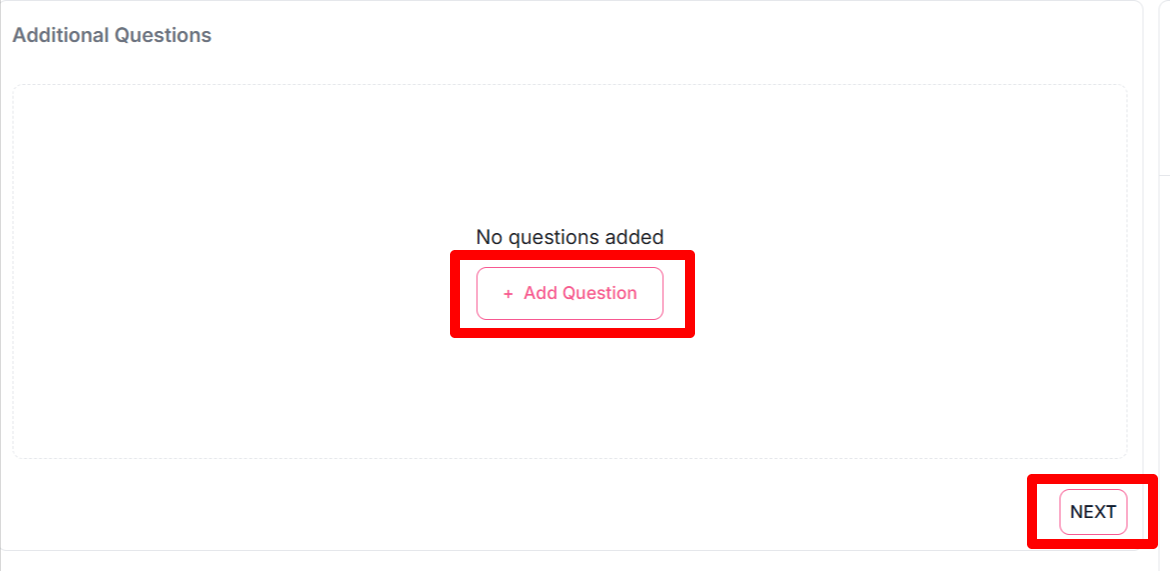
- If you want to add additional questions, click on the Add Questions button. In Gappeo.ai, you can add two types of questions:
- Multiple Choice questions
- Easy Type questions
- If you do not want to add any additional questions, just click on the next button and your assessments get updated.
Related questions:
 How to create assessments in Gappeo.ai?
How can I update the assessment tests
that got created during the Job Creation process?
How to view the
questions for any test that are available in Gappeo.ai?
How to create custom questions in
Gappeo.ai?
How to create custom tests and
assessments in Gappeo.ai?
How to create assessments in Gappeo.ai?
How can I update the assessment tests
that got created during the Job Creation process?
How to view the
questions for any test that are available in Gappeo.ai?
How to create custom questions in
Gappeo.ai?
How to create custom tests and
assessments in Gappeo.ai?