
 Back to FAQs
How to create custom tests and assessments in Gappeo.ai?
- To create custom tests, you need to go to the My Tests option and click on the New Test button.
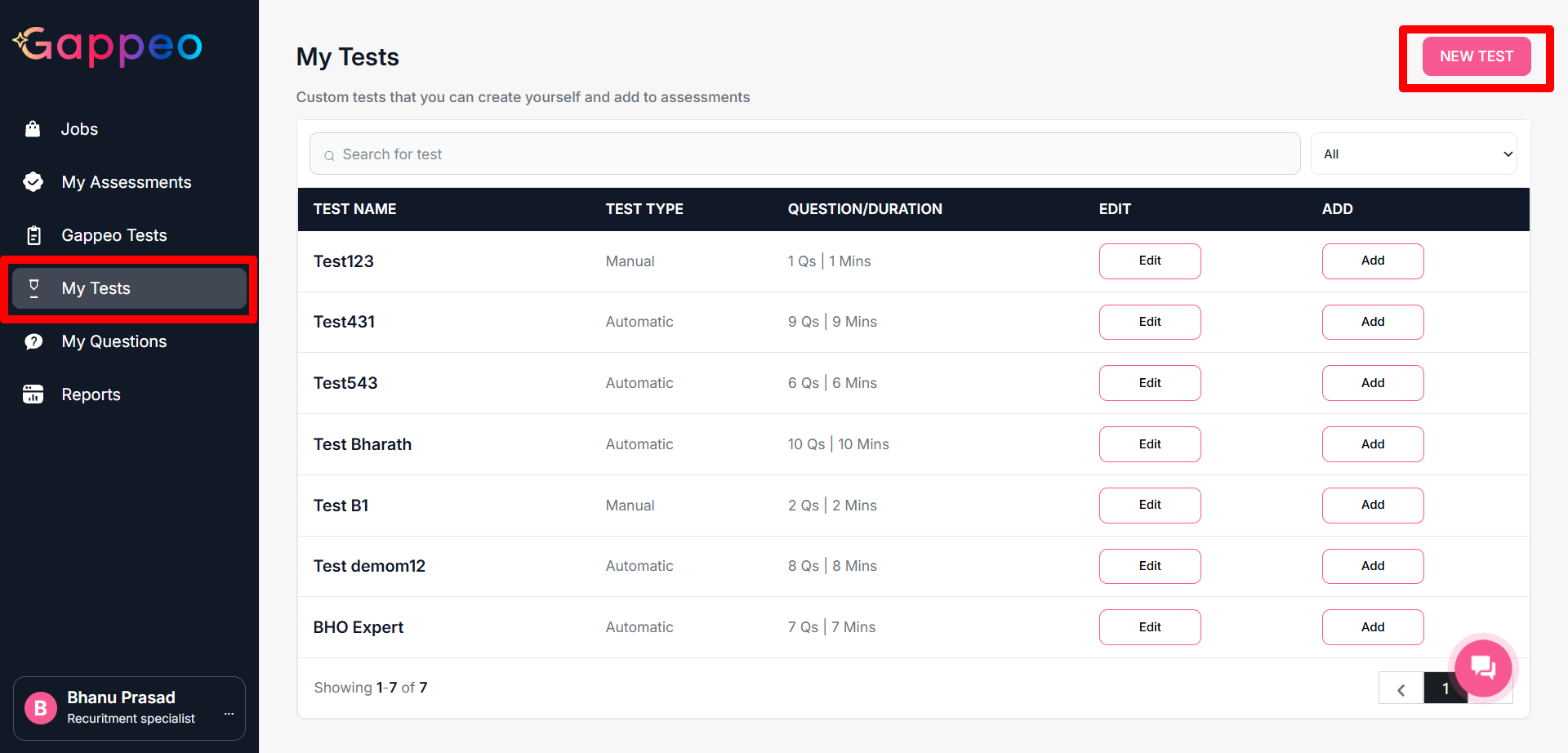
- When you click on this button, you will get options to create tests:
- Select Questions Automatically
- Select Questions Manually.
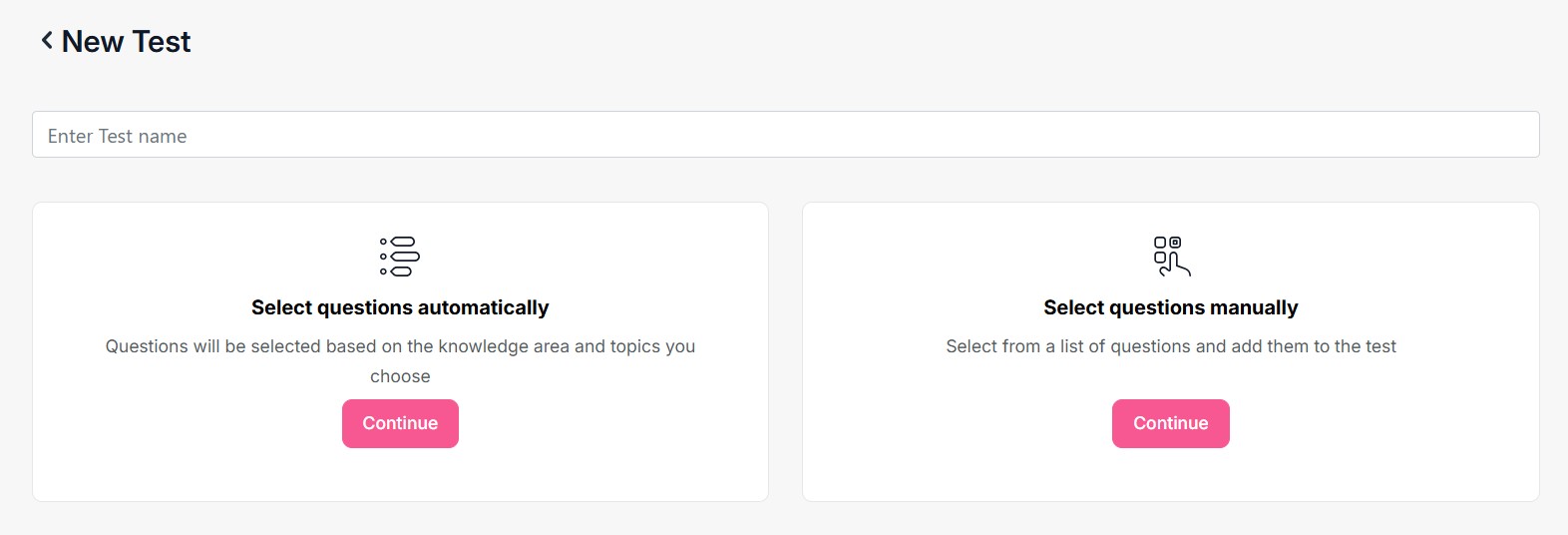
- First of all you need to enter the Test Name.
1. In the first option Select Question Automatically, click on the Continue button.
- Once done, it will give you the below options:
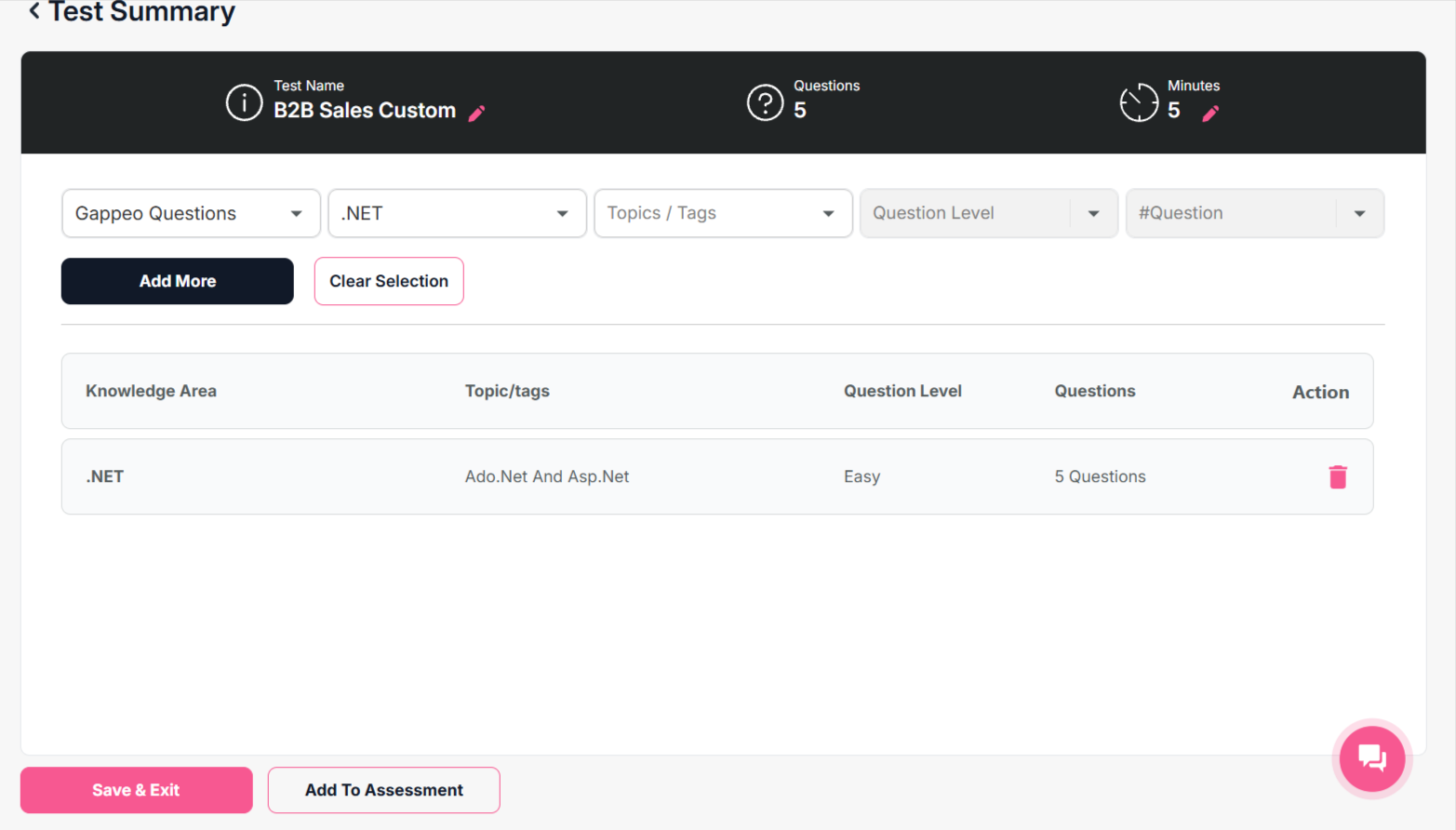
- First of select the category from which you want to add questions:
- Gappeo Questions: This points to the question bank provided by Gappeo.ai.
- My Questions: This points to the custom questions created by you.
- Then select the knowledge area, topics, question level and number of questions to be added.
- Once you are done, click on the Add More.
- You can combine both the above categories too, here.
- Final click on the Save & Exit button, the custom test gets created.
- You can directly use these tests, and add to assessment too by clicking on the Add to Assessments button.
2. In the section, option to select questions manually, you will get the below screen:
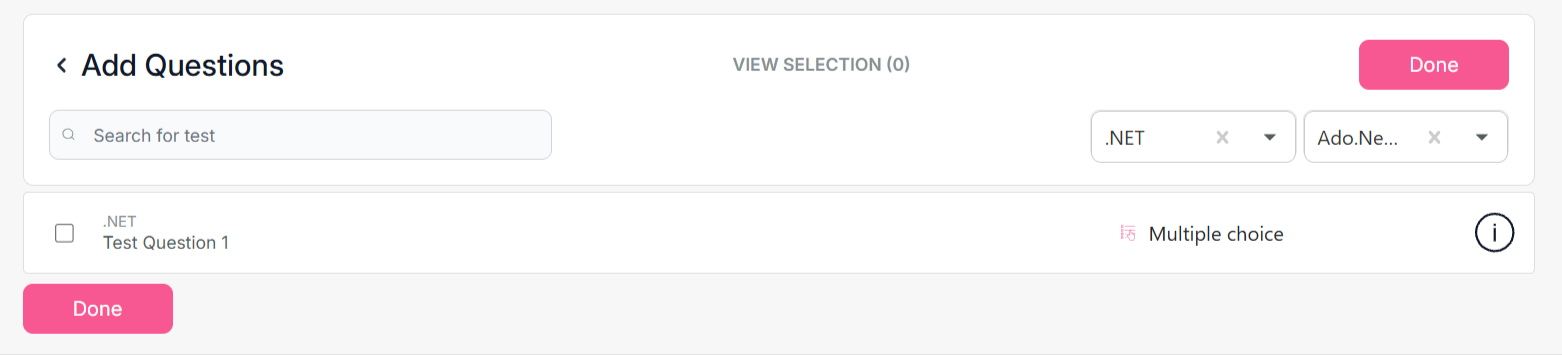
- Here on the side you need to select the Knowledge Area and topic, once done it will show the list of all the questions in that knowledge area and topic.
- Select that question, and click on the done button.
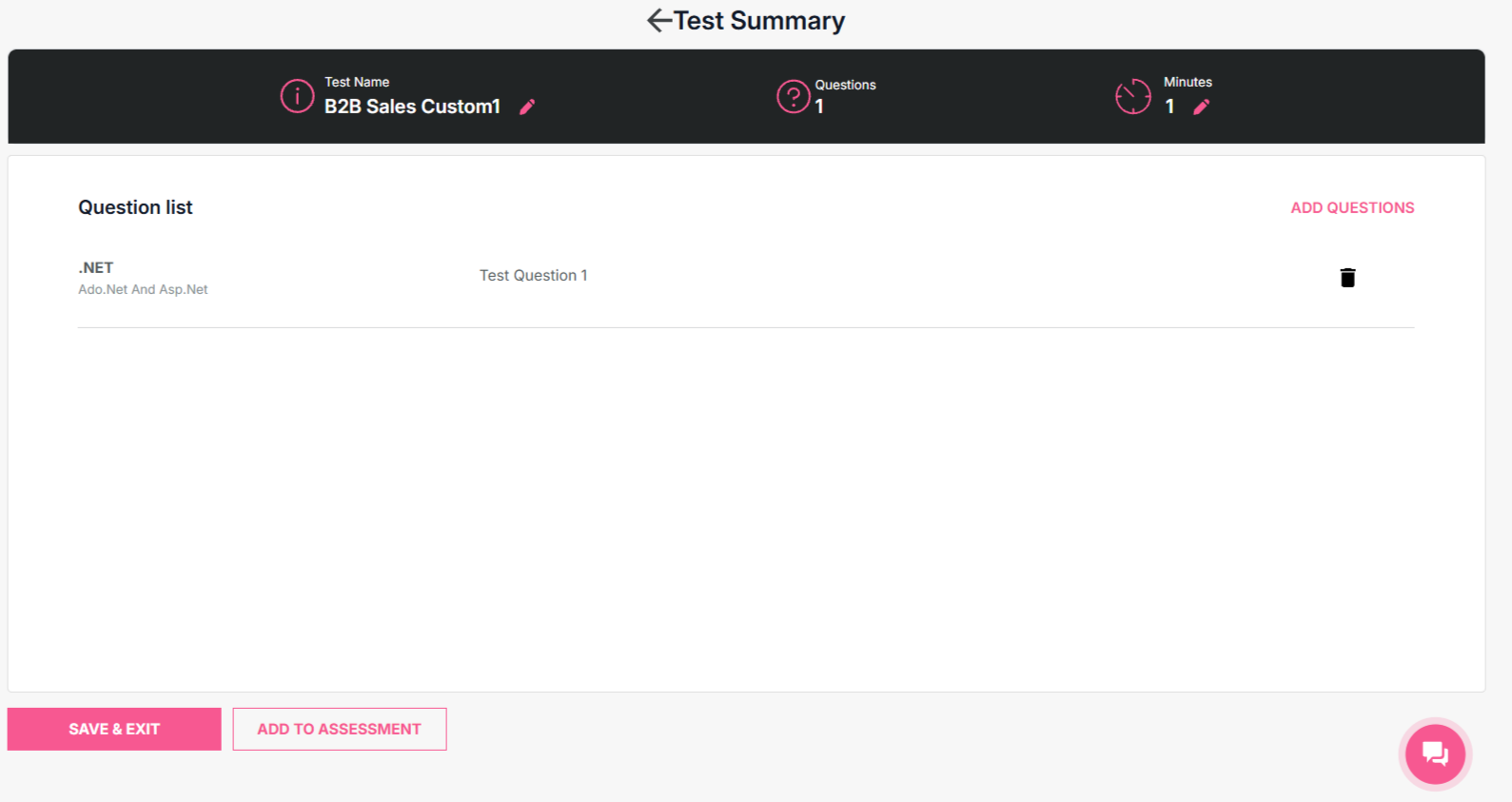
- Once done, you will get an option to save the test and exit. Also you can directly add the test to the assessment by clicking on Add to assessment button.
Related questions:
 How to create assessments in Gappeo.ai?
How can I update the assessment tests
that got created during the Job Creation process?
How to view the
questions for any test that are available in Gappeo.ai?
How to create custom questions in
Gappeo.ai?
How to create custom tests and
assessments in Gappeo.ai?
How to create assessments in Gappeo.ai?
How can I update the assessment tests
that got created during the Job Creation process?
How to view the
questions for any test that are available in Gappeo.ai?
How to create custom questions in
Gappeo.ai?
How to create custom tests and
assessments in Gappeo.ai?